
Stand-by
DocsStand-by
GuidesStand-by
Stand-by turns your device into a small smart display. While it charges or sits idle, the screen shows the time, the date and Maestro’s butterflies. Ask a question out loud: Maestro answers in a few spoken sentences and puts the key facts on a card next to the clock.
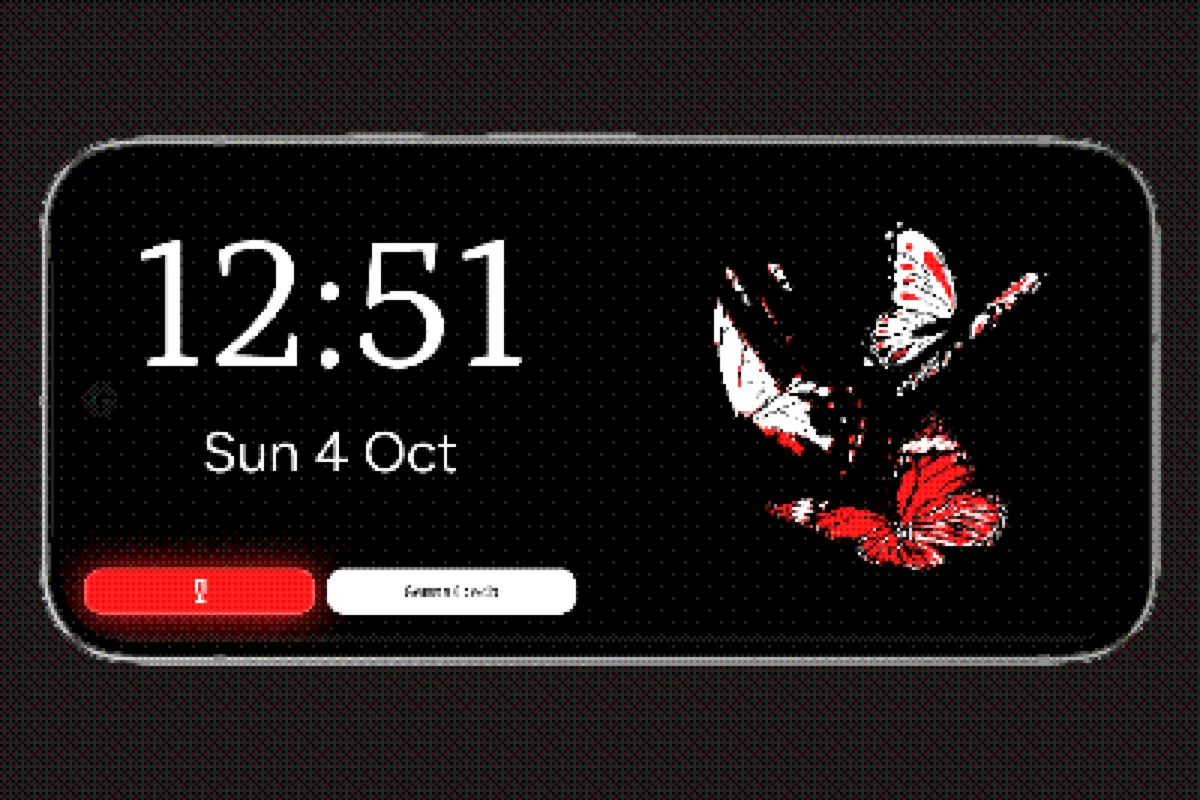
On Android, Stand-by is Opera’s screen saver. The screen is always dark, whatever theme Opera uses.
Turn it on
- In Opera, open Settings → Screen Saver.
- Tap Open screen saver settings. This opens Android’s screen saver page.
- Choose Opera as the screen saver, then pick when it starts: while charging, while docked, or both.
The device shows Stand-by the next time it charges or docks with the screen idle.
What you need
- A model. Stand-by uses the model you pick with the Model button at the bottom of the screen. Any provider works: on-device, Ollama, Sampler Hub or an OpenAI-compatible endpoint. The same picker lets you change the provider and, for models that can think, the reasoning level.
- The microphone permission. The screen saver cannot show a permission prompt, so allow the microphone in Opera first. Turning on Say “Maestro” in settings asks for it.
- Maestro’s voice, if you use it. When the voice engine is Supertonic (the default), download the voice from the Voice engine setting. With the System voice, there is nothing to download.
Stand-by tells you on screen when the voice is missing.
Ask a question
Tap the microphone, or say “Maestro” if the wake word is on, then speak. Listening stops on its own after about a second and a half of silence, or after 20 seconds at most. The microphone button also stops things early: tap it while Maestro listens to send your question now, or while Maestro is answering to cancel the answer.
Replies are made for a screen across the room:
- Short and spoken. One to three sentences, the answer first, written to be heard: no lists, links or tables read out loud. Stand-by always reads its replies aloud.
- A card on screen. Most answers come with a card: a picture of the subject, a few key facts, an optional list such as ingredients or steps, and a button for the obvious next action.
- Follow-up questions. When a spoken reply ends with a question, the microphone reopens by itself once Maestro finishes talking. Stay silent for about four seconds and it closes again.
Tools you enabled in Opera, such as web search, work in Stand-by too. See Tools and MCP.
The card
The card shows what is worth seeing at a glance while Maestro talks:
- Picture: the lead image of the matching Wikipedia article, found from the subject’s name. Opera searches Wikipedia in your language first, then in English. No picture is shown when none is found, and a card that is too short for one drops it to keep the text readable.
- Key facts: up to three short rows of one or two values each, such as a name and an age, or a time and a duration. The first row is the subject.
- List: up to six short items, for example the ingredients of a recipe.
- Action button: opens a page found by a tool during the answer, or a device link to call someone, send a message, write an email or open a place in your maps app. Maestro never makes up a link.
Other widgets, like the weather or a map, show next to the card when they help. On a wide screen the card sits on the right, next to the answer. On a tall one it goes under the answer, above the action button.
Sleep and anti burn-in
After about 15 seconds without a touch (10 seconds after a reply), Stand-by goes to sleep: the conversation clears, any speech stops, the buttons hide, and the clock and butterflies dim and grow. It never falls asleep while Maestro is listening, thinking or speaking, while a follow-up question is waiting for you, or while the model picker is open. Touch the screen or say “Maestro” to wake it. A touch only wakes the screen; it does not press a button.
With Anti burn-in on, the clock and butterflies move a few pixels every minute while asleep, so a still image does not mark OLED screens.
Privacy
- Conversations are saved in your history like any other chat, so you can open a Stand-by conversation later in Opera and continue it there.
- Incognito mode is one tap away on the clock screen, before you ask. The button is hidden during a conversation, so switch it on first. Questions asked in incognito are never saved. You can hide the button in Settings → Screen Saver.
- The wake word runs on the device. Opera listens for “Maestro” locally, and nothing leaves the device until it hears it. It listens only while Stand-by is idle: it pauses while you talk, while Maestro answers, and when Stand-by closes. Your question then goes to the model you chose, like any other message.
- Card pictures come from Wikipedia. To find a picture, Opera sends the subject’s name (not your question) to Wikipedia.
See Privacy for the rest.
Settings
In Opera, Settings → Screen Saver:
| Setting | What it does |
|---|---|
| Anti burn-in | Moves the clock and butterflies a few pixels every minute while asleep. On by default. |
| Incognito mode button | Shows the incognito button on the Stand-by screen. On by default. |
| Say “Maestro” | Lets you ask hands free with the wake word. On by default, needs the microphone permission. |
The voice engine and speed, and the language and model you picked, also shape Stand-by.
In the browser
The same screen also opens at /standby in Opera on the web. It works the same way, with two differences: it needs a Whisper model installed in Opera’s settings (unless the chosen model understands audio), and the settings above use their defaults.