
Android
DocsAndroid
InstallAndroid
Opera for Android is the reference build. It can replace your default assistant, draw over other apps, capture the screen, and run supported models directly on the phone.
Install
From the Play Store
Install Opera from Google Play. Updates arrive through the store.
To try new versions before everyone else, join the open beta from the same Play Store page (Join the beta). You can leave it at any time from there.
Download the APK
Every release also carries the APK: download app-release.apk from the latest GitHub release and open it on your phone. Android asks you to allow installs from your browser or file manager the first time.
Build a dev client
You need Node.js, npm and the Android SDK.
npm installnpm run androidnpm run android builds a debug client named Opera Dev (ai.maestro.opera.dev, blue icon). It installs next to the Play Store version, so both can coexist. Expo CLI does not see the package suffix, which is why the npm scripts pass --app-id for you.
npm run android:previewThe preview build is a release build with R8 and bundled JavaScript, without Metro. Use it when you want to measure real on-device performance.
Set Opera as your assistant
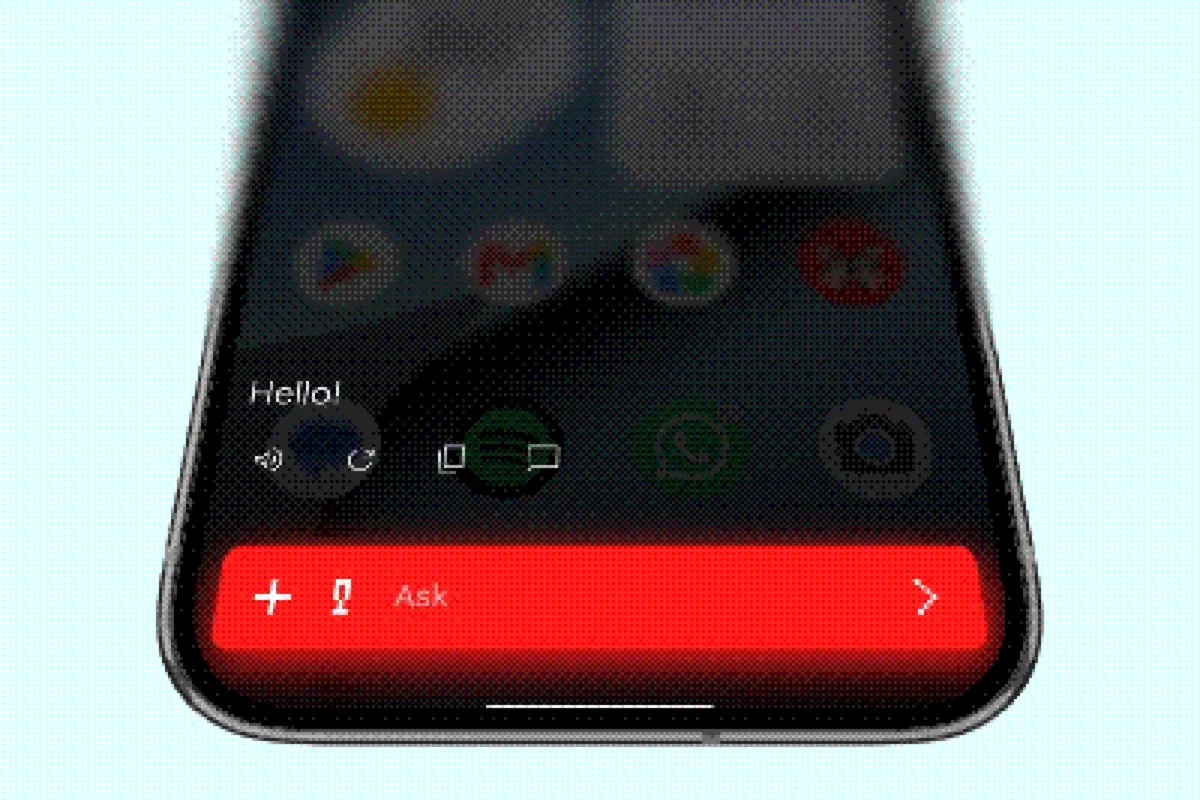
Opera can take the Android assistant role:
- Open Android’s Settings → Apps → Default apps → Digital assistant app.
- Choose Opera.
- Long-press the power button or use your usual assistant gesture.
The assistant role is optional. Opera still works as a normal app without it.
Permissions
Opera asks for permissions only when a feature needs them:
| Permission | Used for |
|---|---|
| Microphone | Dictation and voice messages |
| Camera | Photos and visual questions |
| Contacts | Contact lookups and messaging tools |
| Calendar | Reading and creating events |
| Notifications | Assistant and download updates |
| Display over other apps | The overlay assistant |
| Screen capture | On-screen text selection and object detection |
Every tool can be switched off in settings. Revoking a permission disables the related tool without affecting the rest of the app.
On-device models
On-device models use LiteRT-LM and .litertlm files. Download one from the model picker, or import a compatible file. Model size matters: a larger model needs more RAM and storage and will generate more slowly.
For model options and provider setup, see Models.
Troubleshooting
The build installs but Metro cannot connect. Make sure the phone and computer are on the same network, or use a USB connection with adb reverse.
The assistant role is missing. Some Android skins hide the default-assistant setting. Search for “assistant” in system settings, or open the app’s own onboarding again.
On-device generation is slow. Try a smaller model, close background apps, and use the preview build when benchmarking. The first generation after loading a model is always slower.